
Most small business websites do not fail in a dramatic way. They fade. A contact form quietly stops sending emails. A plugin falls two years behind. The security certificate expires on a Sunday and visitors see a red warning instead of your homepage. Nobody notices for days, because nobody is looking.
This guide is a website maintenance checklist you can actually keep. It is written for owners of small business sites, whether you run a shop in Birgunj, a clinic, a school or a service company, and whether your site is on WordPress or something else. You do not need to be technical. You need a calendar and about an hour a month.
Why maintenance is a business task, not a tech task
A website is closer to a shopfront than to a brochure. You would not leave a shop unswept for a year and expect customers to keep walking in. The same logic applies online, and the damage is easy to miss because you rarely look at your own site the way a stranger does.
Three things tend to go wrong when a site is ignored:
- It breaks quietly. Forms, payment buttons, phone links and map embeds stop working, and you only find out when a customer mentions it.
- It becomes a security risk. Old software and reused passwords are the common way small sites get compromised. Our small business account security checklist covers the login side in detail.
- Google stops trusting it. Google's documentation says that pages returning errors can be dropped from search results if the errors persist. More on that below.
Maintenance is cheap insurance against all three. The trick is to split it by frequency so that it never feels like a giant project.
The routine at a glance
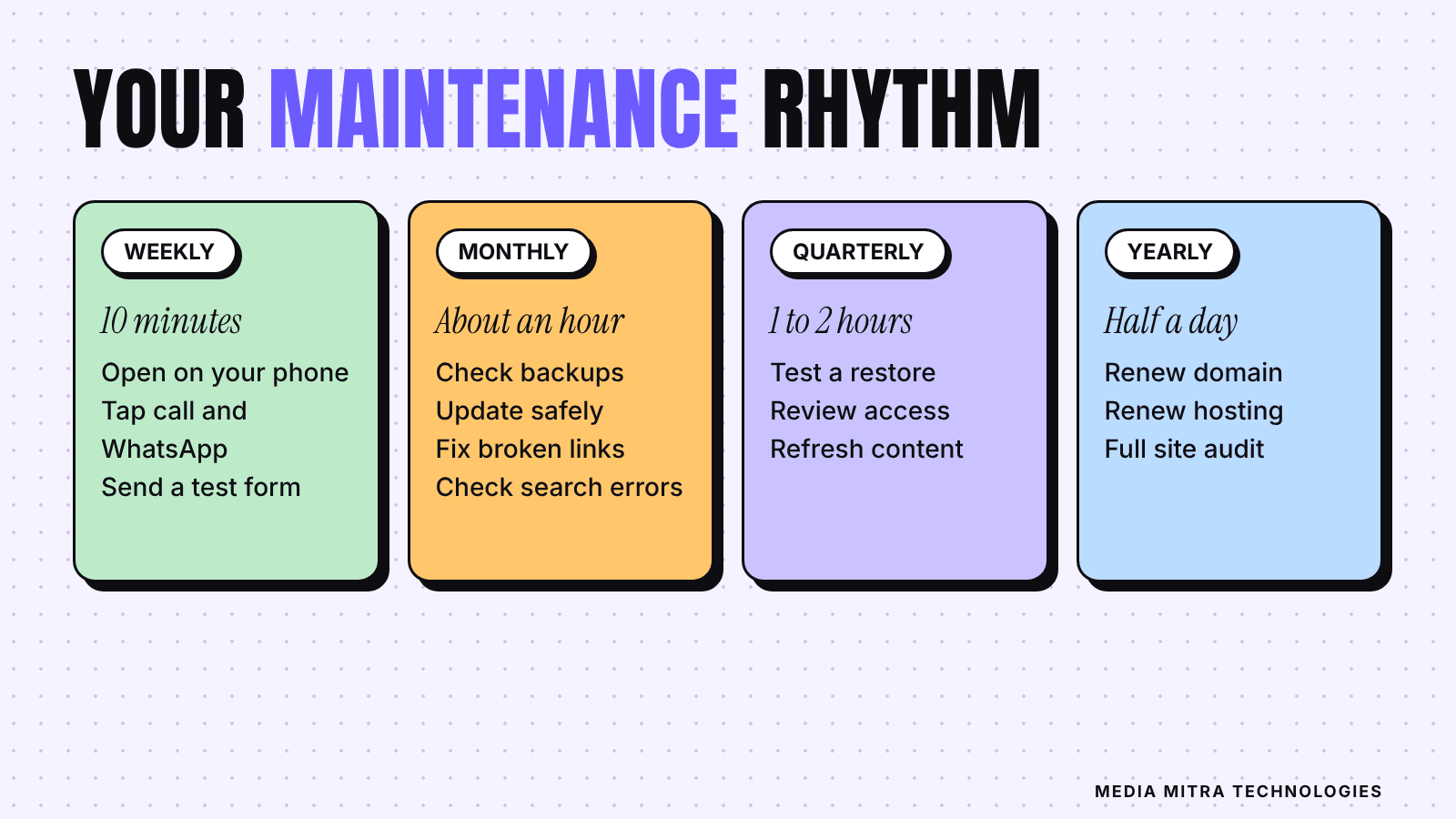
Here is the same plan in plain text, so you can paste it into your phone calendar.
| How often | What to check | Time needed |
|---|---|---|
| Every week | Open your site on your phone, submit your own contact form, glance at your inbox for form messages | 10 minutes |
| Every month | Backups, software updates, broken links, site speed, search errors | 45 to 60 minutes |
| Every quarter | Content review, user accounts, forms and tracking, a restore test | 1 to 2 hours |
| Every year | Domain and hosting renewals, full design and content audit, review of who has access | Half a day |
Weekly: the ten-minute test
This is the check that catches most embarrassing problems. Do it as a customer would.
- Open your homepage on your phone, on mobile data rather than your office Wi-Fi. Does it load, and does it look right?
- Tap your phone number and WhatsApp button. They should open the dialer and the chat.
- Submit your own contact form with a test message. Then confirm that the message arrived, in the inbox and not in spam.
- Click through your main call to action. If you sell something, add an item to the cart and go as far as the payment step.
The form test matters more than it sounds. Forms are the most common thing to stop working after an update or a change in email settings, and they are the whole point of many small business sites. Picture a clinic whose booking form has been silently failing for three weeks. The site looks fine. The phone just stays quiet.
Monthly: the one-hour routine
1. Check that backups exist and are recent
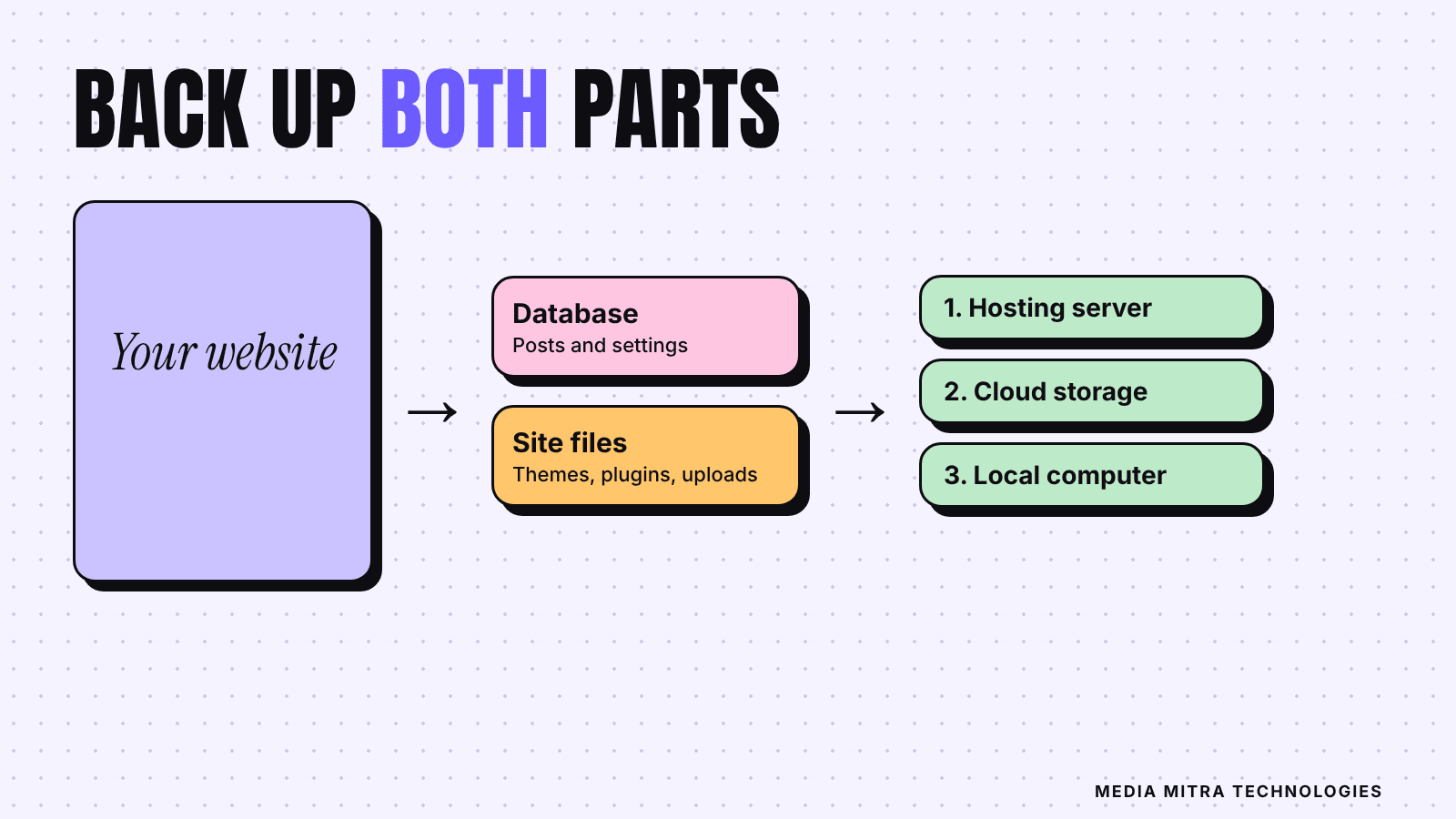
A backup you have never looked at is a hope, not a plan. For WordPress, the official documentation explains that a full backup needs two parts: the database, which holds your posts and settings, and the site files, which include themes, plugins and uploads. Copying only the folder does not capture the database.
The same documentation suggests that smaller sites can often back up weekly, busier sites daily, and that you should always back up before an upgrade or a move. It also recommends keeping several recent backups in separate locations, such as the hosting server, cloud storage and a local computer, and running a manual backup now and then to confirm the automation really works.
If you are not on WordPress, the principle is the same: know where your backups live, how old the latest one is, and who can restore it. Ask your developer or host to tell you in writing.
2. Apply updates, with a safety step
Updates fix security holes and bugs, which is why you should not skip them. But updates can also break things. The safe order is simple:
- Take a fresh backup first.
- Update one thing at a time: core software, then plugins, then the theme.
- After each batch, repeat the weekly ten-minute test.
If something breaks, you know exactly which change caused it, and you have a backup to return to. Remove plugins and themes you no longer use rather than leaving them inactive. Unused code is still code that needs updating.
3. Look for errors in Search Console
If you have not set up Google's free tool yet, our Google Search Console setup guide walks through it. Once it is running, a monthly look at the page indexing report is enough.
Here is why it matters, according to Google's own documentation on HTTP status codes:
- Google does not index URLs that return 404 (not found), and ones already indexed are removed over time. That is fine for a page you deleted on purpose, but not for a page you wanted to keep.
- A "soft 404" is a page that shows an error or an empty page but still reports success. Search Console flags these, and Google may treat them as real 404s.
- Server errors (5xx) make Google's crawlers slow down. If they persist, already indexed URLs are eventually dropped. When the server responds normally again, Google gradually raises the crawl rate back.
In practice: if a service page you care about shows up as an error, fix it or redirect it to the right replacement page. If the whole site shows server errors, call your host the same day.
4. Hunt for broken links
Click through your menu, footer, and the links in your three most important pages. Free browser extensions and online link checkers can scan a whole site. Fix links that lead to deleted pages, old social media accounts or expired offers. Nothing says "nobody is minding this business" like a button that leads to a 404 page.
5. Re-check speed
Slow sites lose visitors, and image-heavy pages are the usual cause. Run your homepage and one key page through PageSpeed Insights and compare with last month. If you need help reading the results, see our plain-English guide to Core Web Vitals. The usual monthly culprits are new photos uploaded at full camera size.
Quarterly: the deeper check
Every three months, add these tasks to the monthly routine.
Test a restore
This is the step almost everyone skips. Ask your developer or host to restore the latest backup to a test copy, or at least confirm in writing that a restore has been tested. The official WordPress advice to run manual backups to confirm automation works comes from the same idea: you only know a backup is good when you have used it.
Review who has access
List every person and agency with a login to your website, hosting, domain and email. Remove former employees, old freelancers and anyone who no longer needs access. Turn on two-step verification where it is offered.
Review your content
Walk through each important page and ask:
- Are the prices, phone numbers, address and opening hours still correct?
- Are festival offers or old campaigns still sitting on the homepage?
- Does each main page have one clear next step for the visitor?
- Do the photos still show your current products, team and premises?
Outdated information is worse than missing information. A wrong phone number costs you real customers.
Check your forms and tracking
Confirm that form notifications reach the right inbox, and that your analytics still records the actions that matter. If you use Google Analytics 4, our guide to GA4 key events explains what to track and how to confirm it works.
Yearly: renewals and the big picture
Domain, hosting and certificates
Put the renewal dates for your domain name and hosting in your calendar, with a reminder a month ahead. Make sure the renewal emails go to an address that a real person reads, not an old developer's inbox. Losing a domain you forgot to renew is one of the most painful and avoidable mistakes in small business marketing.
Security certificates (the thing behind the padlock and https) deserve a line too. Many hosts renew them automatically. As one example, Let's Encrypt's own FAQ says its default certificates are valid for 90 days and recommends renewing every 60 days, which is why automated renewal is the norm. If you rely on automation, check once a quarter that the certificate date in your browser is still moving forward.
Run a full audit
Once a year, ask honestly: does this site still match what the business does today? Look at the design, the services listed, the calls to action and the mobile experience. If the answer is mostly no, it may be time for a redesign. Our website brief template helps you describe what you need before you speak to a developer.
Who should do what
You do not have to do everything yourself. A sensible split looks like this:
- You or a staff member: the weekly test, content accuracy, deciding what gets updated.
- Your developer or agency: backups, updates, restore tests, speed fixes, security.
- Both: a short monthly note saying what was checked and what was fixed.
Whoever does it, ask for a simple monthly summary. If you cannot get one, that is useful information about the arrangement.
Frequently Asked Questions
How often should I back up my website?
It depends on how often the site changes. The WordPress documentation says smaller sites can usually back up weekly and busier ones may need daily backups. Always back up before any update or move.
Do I need a maintenance plan if I have a simple website?
Even a five-page site needs renewals, a working contact form and occasional updates. A simple site just needs less time, not no time.
What is the first sign that my website has a problem?
Usually it is a customer telling you, which is exactly what the weekly ten-minute test is designed to prevent.
How much does website maintenance cost in Nepal?
It varies by site size and who does the work, and we will not quote a number that depends on your setup. Ask any provider to list exactly what is included: backups, updates, security checks, restore tests and reporting.
Can I do website maintenance myself?
The weekly and content checks are well within reach of any owner. Backups, updates and restores are safer in the hands of someone who has done them before.
Conclusion
Website maintenance is boring in the best way. A ten-minute weekly test, an hour a month, and a calendar full of renewal dates will prevent most of the problems that cost small businesses customers. Start with this week: open your site on your phone and send yourself a test message.
If you would rather have someone else keep watch, Media Mitra Technologies builds and looks after websites for businesses in Birgunj and across Nepal. Talk to us and we will tell you honestly what your site needs.