

Most small business owners in Nepal know how their Facebook page is doing. They can tell you the likes, the reach, the best post of the month. Ask the same owner how many people found their website on Google last week, and you usually get a shrug.
That gap is exactly what Google Search Console fills. It is a free tool from Google that shows how your website appears in Google Search: which searches show your pages, how often people click, and which pages Google could not read properly. If you have a website and care about being found, this is the first dashboard worth learning.
This guide walks through Google Search Console for small business owners in plain language: what it is, how to set it up, the four numbers that matter, and a short weekly routine you can actually keep up with.
What Google Search Console actually does
Google's Search Console overview describes it as a free service that helps you monitor, maintain and troubleshoot your site's presence in Google Search results. You do not have to sign up for your site to appear in Google. But without it, you are guessing.
According to Google's own documentation, Search Console lets you:
- Check that Google can find and crawl your website
- Fix indexing problems and ask for new or updated content to be re-indexed
- See search traffic data, including how many people clicked through to you
- Get alerts when Google finds technical problems or security issues
- See which other websites link to yours
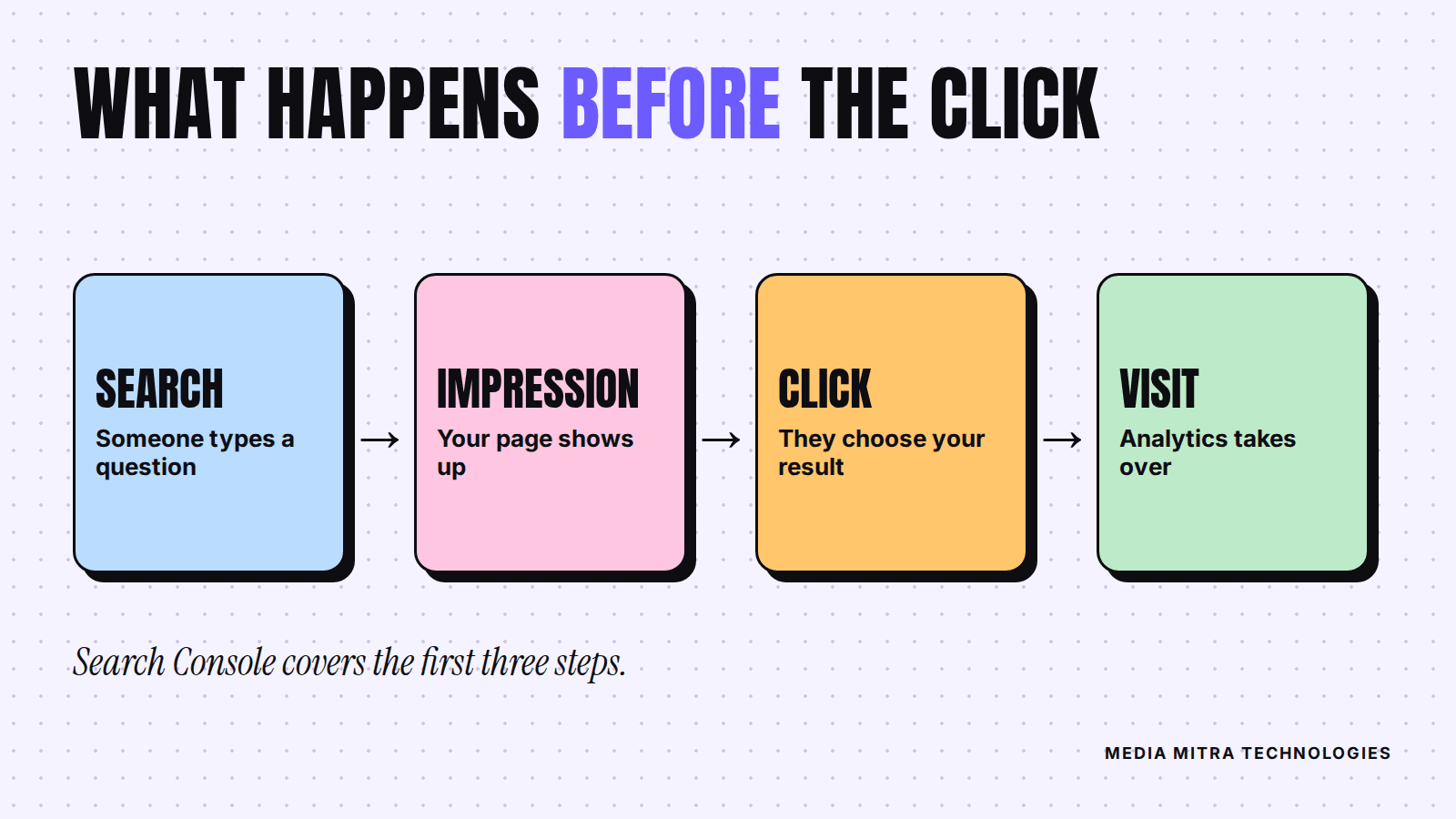
It is worth being clear about what it is not. It is not Google Analytics. Analytics tells you what visitors do after they land on your site. Search Console tells you what happened before the click: whether you showed up, for which searches, and how often people chose you.
Before you start: what you need
You need three things:
- A Google account (a Gmail address is fine, but use one that will still belong to the business in two years)
- Access to your domain's DNS settings or your website's files, depending on the verification method
- About 20 minutes
If a freelancer or agency built your site, ask them who controls the domain. Many Nepali businesses discover that their domain is registered under a developer's personal account. Sort that out first. It also affects things like your website brief and who owns what.
How to set up Search Console step by step
Step 1: Choose the property type
When you add a site (see Google's guide to adding a property), Search Console asks you to pick a property type. The difference matters.
| Property type | What it covers | How you verify |
|---|---|---|
| Domain property | All subdomains and both http and https versions of your domain | DNS record only |
| URL prefix property | Only URLs that start with the exact address you enter, including the protocol | Several methods, including an HTML file or tag |
For most small businesses, a domain property is the better choice because it gathers everything in one place, including the www and non-www versions of your site. If you cannot edit DNS, use a URL prefix property instead and enter your full address exactly as it appears, for example https://www.yourbusiness.com.np/.
Step 2: Verify that you own the site
Verification is how Google confirms you are allowed to see the data. For a domain property, you add a short DNS record that Search Console gives you, usually a TXT record, at your domain registrar. For a URL prefix property you can choose a different method, such as uploading a file or adding a tag to your site.
DNS changes can take a while to show up. If verification fails the first time, wait and try again later before assuming you did something wrong.
Step 3: Submit your sitemap
A sitemap is a file that lists the pages you consider important. Google's documentation says a small site with well linked pages may not strictly need one, but that a newer site with few links pointing to it can benefit. Since most small business sites fall into the "new and few links" group, submitting one costs you almost nothing.
Most website platforms generate one automatically, often at an address like yourdomain.com/sitemap.xml. Open the Sitemaps section in Search Console, paste the address, and submit. Submitting a sitemap does not guarantee every page gets indexed. It is a hint, not a command.
Step 4: Be patient
Right after setup, the reports will be nearly empty. Data builds up over days. Resist the urge to check every hour. Come back in a week.
The four numbers in the Performance report
The Performance report is where you will spend most of your time. Google's Performance report documentation defines its main metrics like this:
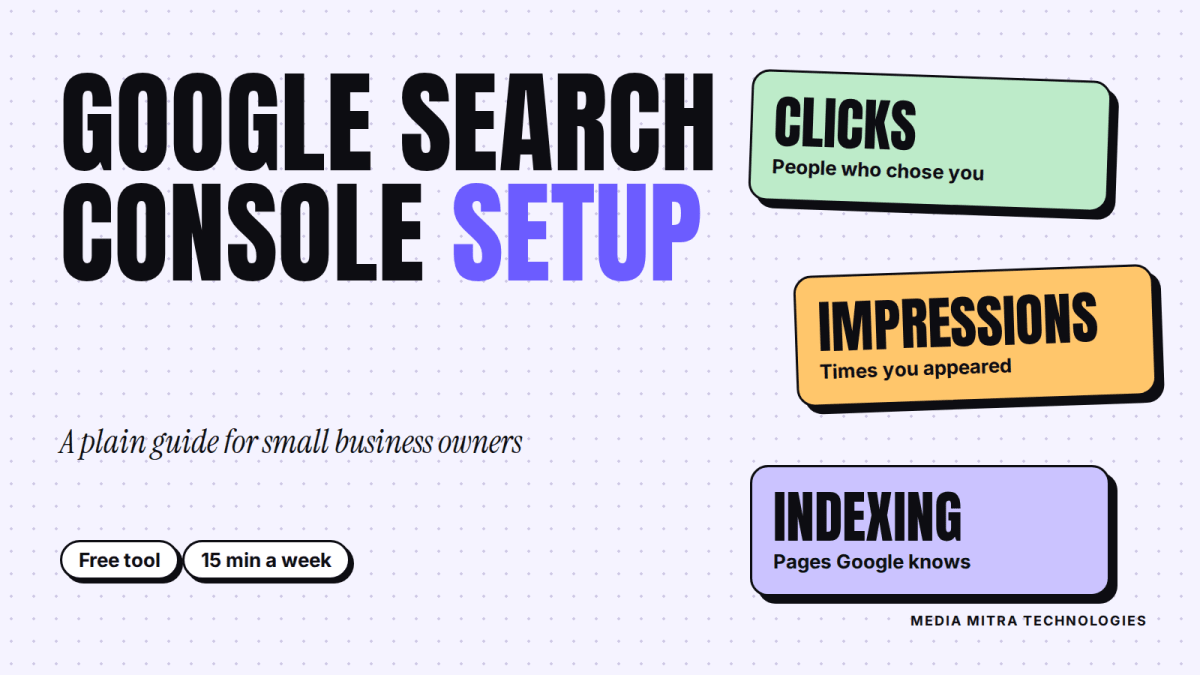
- Clicks: how many times someone clicked through to your site from Google Search results
- Impressions: how many times your site appeared in search results
- CTR (click through rate): clicks divided by impressions
- Average position: the average position of the topmost result from your site
You can break these down by query (the words people searched), page, country, device and date. The default view covers the past three months.
How to read them like a business owner
Numbers mean little without a question attached. Here are the questions worth asking.
Which searches are bringing impressions but no clicks? If a query shows hundreds of impressions and almost no clicks, people see you and scroll past. Often the page title or description is weak, or the page ranks too low to be noticed. Rewrite the title to say clearly what the page offers.
Which pages get impressions for the wrong reason? Picture a furniture shop in Birgunj whose blog post about "sofa cleaning tips" brings impressions, while the actual sofa category page brings almost none. That tells you where to put your effort: strengthen the category page, and link to it from the blog post.
Are people searching with words you never used? Queries are a free market research report. If customers search "plywood price Birgunj" and your site says "premium timber solutions", you have a vocabulary gap. Use their words on your pages.
Is mobile doing worse than desktop? Most Nepali searches happen on phones. If the device filter shows your mobile CTR or position is far behind desktop, check page speed and layout on a real phone. Our guide to Core Web Vitals for small business websites explains the speed side in plain terms.
A caution on average position: it is an average, and it moves around. Do not celebrate or panic over a one day change. Look at trends over weeks.
Find out whether Google has indexed your pages
Search Console's Page indexing report shows how many URLs on your site Google has crawled and indexed, and why other pages were left out. This is the most useful report for new sites.
Two things to keep straight:
- Not every page needs to be indexed. Duplicates, login pages and thin utility pages are better left out. Google's own guidance is that the goal is for the important versions of your pages to be indexed, not every possible URL.
- Pages with a "not indexed" status deserve a look, not a panic. Open the reason, check whether the page is one you actually want people to find, and decide from there.
For one specific page, use the URL Inspection tool. Paste the page address and Search Console tells you whether it is on Google, when it was last crawled, and which version Google treats as the main one. If you just published or updated an important page, you can use Request indexing. Google says indexing typically takes a day or so but can take much longer, and there is a daily limit per property. A passing test also does not guarantee the page will appear in results.
If a page you care about is not indexed, the usual fixes are dull but effective: make sure nothing blocks it, link to it from other pages on your site, and make the content genuinely useful and different from your other pages.
A 15 minute weekly routine
Tools only help if you use them. This routine is small enough to survive a busy week.
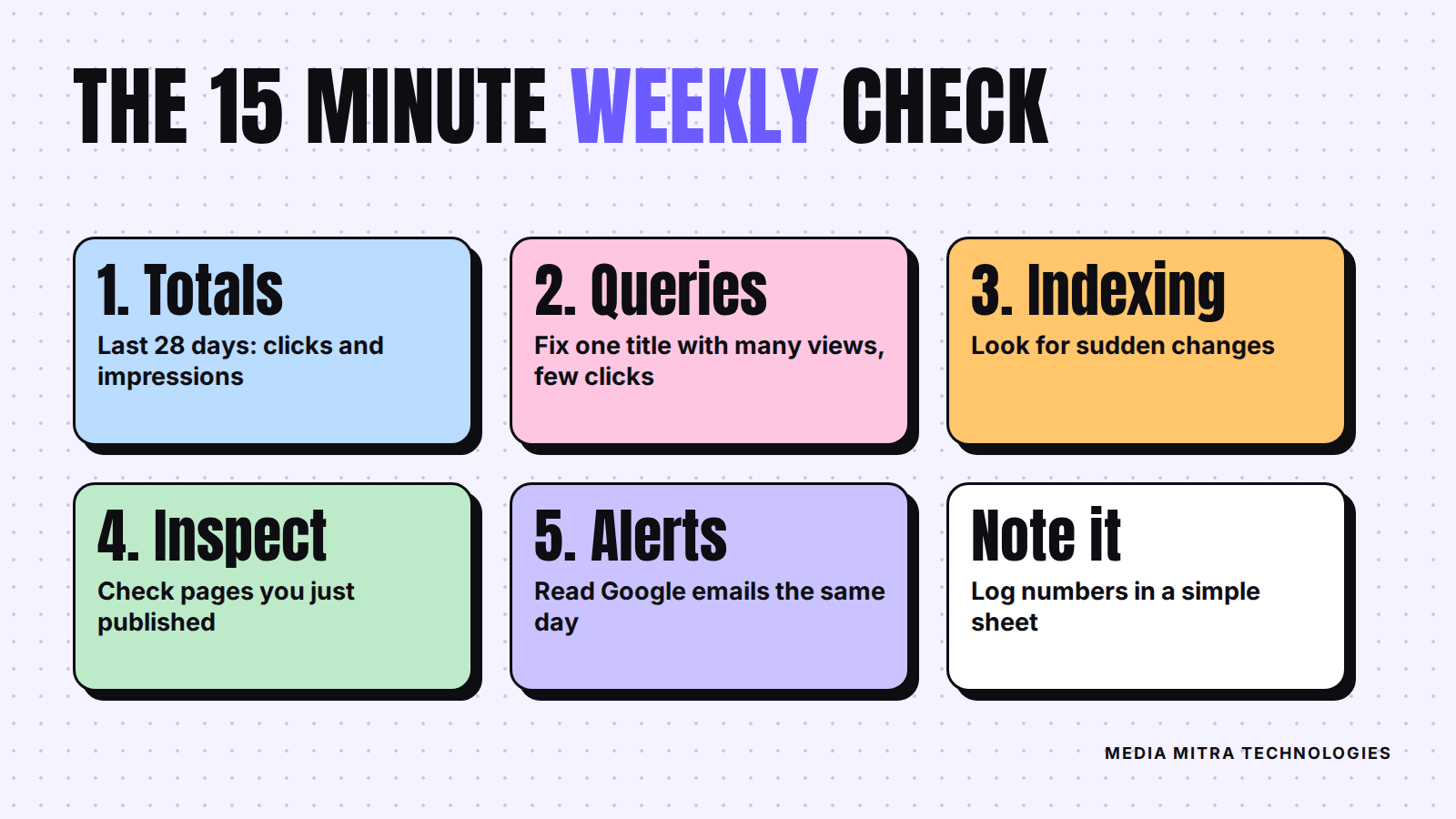
- Open Performance, set the date range to the last 28 days. Note total clicks and impressions. Write them in a simple sheet.
- Sort queries by impressions. Pick one query with many impressions and few clicks. Improve that page's title and opening paragraph.
- Check Page indexing. Look only for sudden changes or newly listed problems on pages that matter.
- Inspect any page you published or changed. Request indexing if needed.
- Look at the notifications. If Google emailed you about a problem, read it the same day.
Once a month, compare against the previous month and write one line about what you changed and what happened. After three months you will know more about your own search visibility than most of your competitors.
Common mistakes to avoid
- Verifying with a personal address and then losing access. Add a second owner or trusted user from the business.
- Expecting instant results. Search Console reports on search performance. It does not improve it by itself.
- Chasing every error. Fix what affects pages that earn customers first.
- Ignoring local signals. If you serve a town like Birgunj, Search Console is only half the picture. Pair it with a complete Google Business Profile and the habits in our local SEO guide for Nepal.
- Treating it as a one time setup. The value is in the habit of checking.
Frequently Asked Questions
Is Google Search Console free?
Yes. Google offers it as a free service. You only need a Google account and a way to verify that you own the site.
Do I need Search Console if my business has no website, only a Facebook page?
No, it is for websites. If you do not have one yet, decide whether you need one first. Our comparison of website vs social media for a startup can help with that choice.
How long until I see data?
Data starts appearing after verification, but the reports fill slowly. Give it at least a week before drawing conclusions, and a few weeks before comparing periods.
Will submitting a sitemap make my site rank higher?
No. A sitemap helps Google discover your pages. It does not guarantee indexing, and it does not by itself improve rankings.
Is Search Console the same as Google Analytics?
No. Search Console shows how you perform in Google Search before the click. Analytics shows what visitors do on your site after they arrive. Use both when you can.
Conclusion
Google Search Console will not do your marketing for you, but it removes the guesswork. Set it up once, check it for fifteen minutes a week, and fix the one thing each report points to. That small habit, repeated, is how modest websites start to get found.
If you would rather have someone set it up properly and turn the reports into a plan, the Media Mitra team can help. Talk to us here and tell us about your website.